Compare Prompts and Models in the Sandbox
For anyone choosing between two models, or two versions of a prompt, without spending a real run to find out. The Sandbox tests them side by side, off to the side of your board. You pick an agent kind, one or more prompt versions, one or more models, and a set of graded fixtures, then run them all at once. A judge model scores every combination so you can see which prompt and which model handle the work best before you commit to a preset.
Nothing in the Sandbox touches your real pipelines. It runs against fixtures (hand-authored sample inputs), grades the output, and shows you a results grid. Use it to iterate on a prompt or a fragment, or to compare models, without spending a real run.
Opening the Sandbox
The Sandbox is an on-demand window, not a board view. Open it from Sandbox in the sidebar's Models group, or from the command palette ("Open Sandbox"). It sits there with the model providers and the per-agent model choice, rather than among the integrations, because it connects to nothing: it evaluates the model layer that section configures. Kaizen is beside it for the same reason. The Sandbox loads when you open it and closes back to your board when you are done.
The Sandbox is opt-in per deployment
The Sandbox needs its own database, separate from the main one (a dedicated SANDBOX_DB on Cloudflare, or the sandbox schema on a Node/Postgres deployment). On a deployment that has not provisioned it, the window opens to a notice that the Sandbox is not enabled. Your operator provisions the database to turn it on.
The window has three tabs: Experiments, Prompts, and Fixtures.
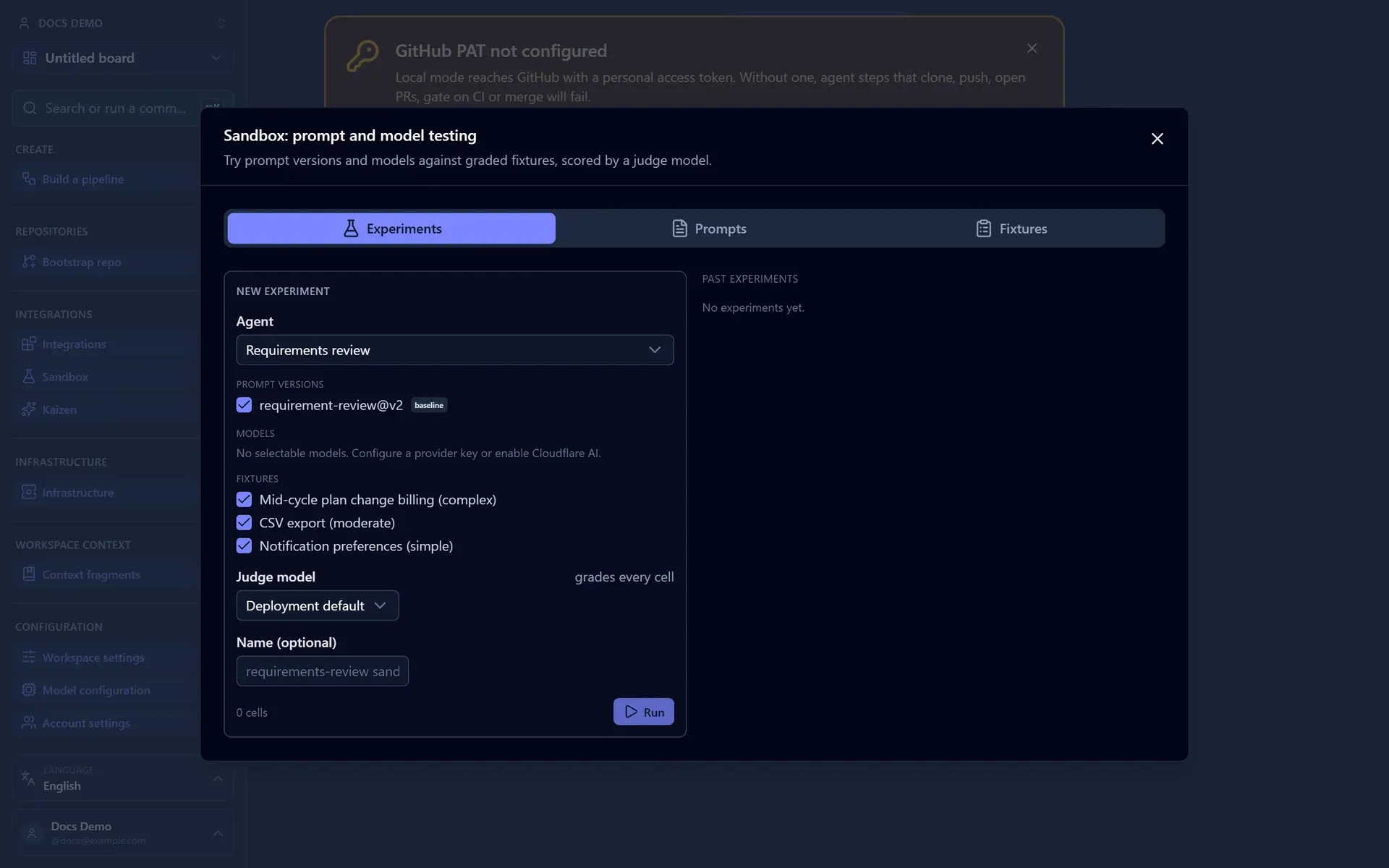
Experiments: run a matrix and read the grid
An experiment is one agent kind tested across a matrix of prompt versions, models, and fixtures. Build one on the left of the Experiments tab:
- Agent: the kind of work to test. The shipped catalog covers requirements review, clarity (bug-report) review, code review, and architecture-proposal review. These are inline kinds: each cell is a single model call against a fixture, with no repository checkout.
- Prompt versions: every prompt version for that agent. The shipped baseline is selected by default. Add your own candidate versions (see Prompts) to ask "does a better prompt help?".
- Models: which models to test. Only models a connected provider can serve are listed. With no model selected the experiment cannot run.
- Fixtures: the graded inputs to run against. Every fixture for the agent is selected by default; the list is filtered to the fixtures that match the agent kind.
- Judge model: the model that grades every cell. Leave it on Deployment default to use the deployment's routing default, or pick one explicitly. On a deployment with no default model wired, pick one explicitly: leaving it on default fails the run at create time.
- Name: optional. A label is derived from the agent if you leave it blank.
The builder shows the cell count, which is prompt versions times models times fixtures. There is a cap per experiment (shown next to the count); trim a selection if you go over it. Press Run to create the experiment and launch it. It runs every cell to completion in one pass, then shows the graded grid.
What you get back
Each row in the results grid is one cell (a prompt version, a model, and a fixture):
- Score: the judge's weighted total for that cell, on a 1 to 5 scale, colored by band (green for strong, amber for middling, red for weak).
- Objective: a deterministic count of how many of the fixture's graded expectations the output caught, out of the total. This is scored from the fixture's declared findings, not by the judge, so it does not depend on the judge's mood.
Click a row to inspect the cell: the candidate output, the judge's per-dimension scores with the rationale for each, and any error. A cell that produced output but failed grading keeps its output visible alongside the grading error, so a judge problem never hides what the model actually wrote.
Past experiments are listed below the grid. Click one to reopen its grid. Running an experiment again re-runs it from scratch and replaces the prior grid.
Token budget
An experiment can carry an optional token budget. It is a soft cap, checked between cells: once the running total crosses it, the launch stops rather than working through the whole matrix. Combined with the cell cap, this bounds what a single experiment can spend.
Prompts: fork a baseline and version it
The Prompts tab is the prompt library for the testable agent kinds. Each agent ships a baseline: the system prompt the product uses today, read live from source so it always reflects the current text. You cannot edit a baseline in place. Instead:
- Fork a baseline (the pencil) to start an editable candidate lineage from its text.
- Edit and save a candidate to append a new immutable version. Each save is a numbered version (v1, v2, ...) you can put under test in an experiment, so you can compare two phrasings of the same prompt head to head.
- Archive a candidate you no longer want.
Because every version is immutable once saved, an experiment's result always points at the exact prompt text that produced it.
Fixtures: the graded inputs
The Fixtures tab lists the inputs experiments run against. The shipped fixtures are hand-authored, graded, no-repo inputs covering the inline agent kinds: requirements review, clarity (bug-report) review, code review, and architecture-proposal review, each ranging from simple to complex.
A graded fixture declares the genuine findings a strong answer should surface. Grading is asymmetric: missing a high-impact finding hurts the score most, and catching a subtle, hard-to-spot finding earns a bonus. That is what drives the objective caught-out-of-total count in the results grid, so a model that finds the findings that matter scores higher than one that pads its answer with easy items.
Container and repository fixtures (the kind that need a real checkout, such as the implementation agent) are not run in the Sandbox. The shipped fixtures are all inline.
When to use it
- Iterating on a prompt or fragment: fork the baseline, edit it, and run the candidate against the same fixtures as the baseline to see whether your change actually scores better.
- Comparing models before a preset: run one prompt across several models against the fixtures for that agent kind, then assign the winner in your preset.
- Sanity-checking a new model or provider: point an experiment at a model you just connected to confirm it produces sensible, well-scored output on a known input.
Next: wire the winning model into a preset, or shape the prompt itself with Apply Standards with Prompt Fragments.